Ethernet vs Wi-Fi: Which Connection Suits Streaming and Remote Work?
Ethernet vs Wi-Fi explained for home streaming and remote work, covering stability, latency, interference, cabling options and when each one fits best.
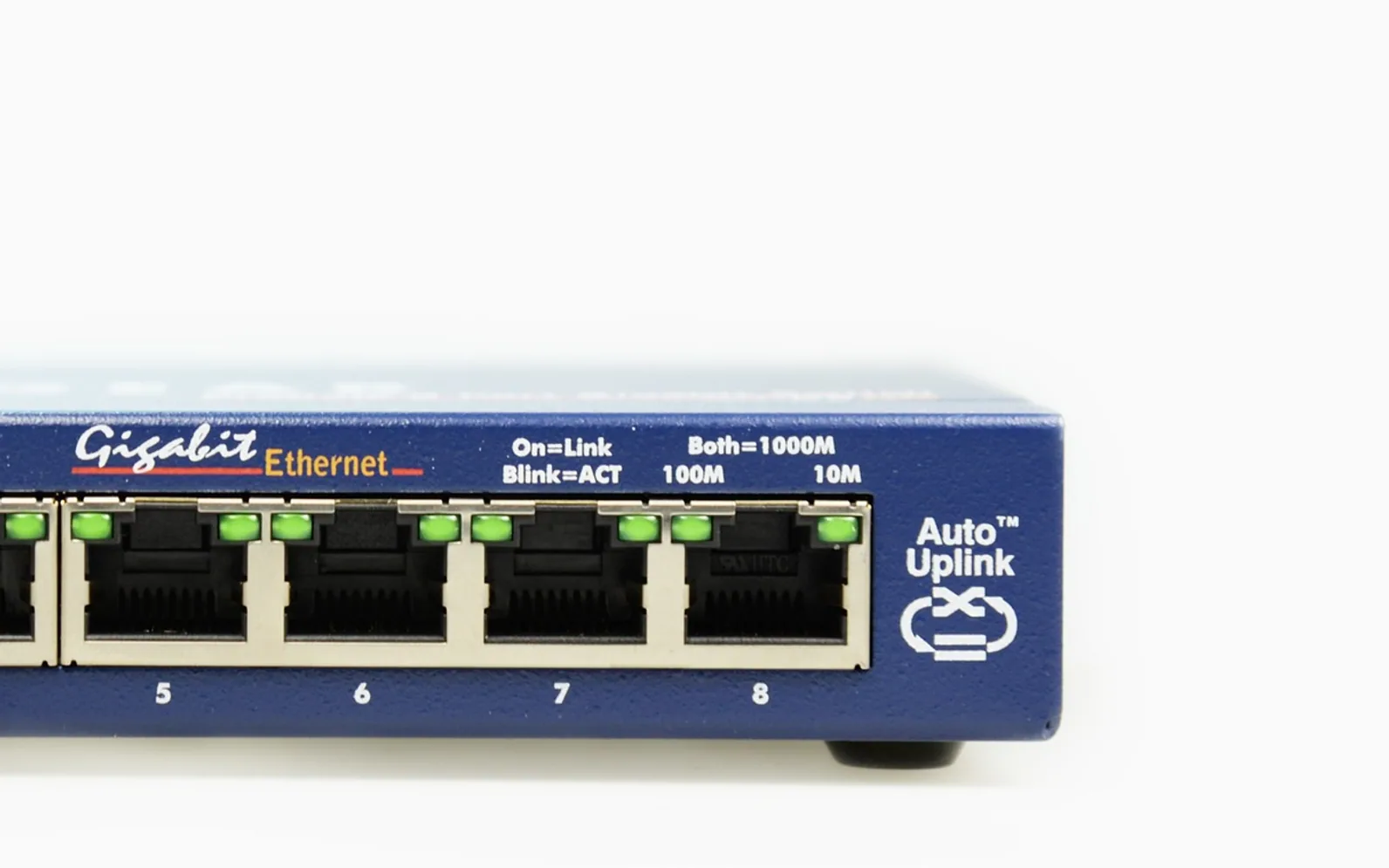
Most homes run almost everything over Wi-Fi now, and for scrolling a phone on the couch that is perfectly fine. The question of ethernet vs Wi-Fi comes up when something important starts misbehaving: a video call freezes mid-sentence, a live football match drops to a blurry picture at the decisive moment, or a large upload crawls. This guide explains what actually differs between the two connections and how to choose for each device in the house.
What each connection does
An ethernet cable carries data between your device and the router over copper wire. Nothing else shares that wire, so the signal does not compete with neighbors, microwaves or thick walls. Wi-Fi sends the same data over radio. The router broadcasts on one or more frequency bands, and every wireless device in range takes turns talking on that shared air.
Neither one changes the speed of the internet plan you pay for. Your provider sets the ceiling. What the connection inside the house decides is how much of that ceiling actually reaches the device, and how steadily it arrives.
Where a cable wins
Consistency
The biggest practical difference is not peak speed but steadiness. A wired link delivers roughly the same performance minute after minute. Wi-Fi throughput rises and falls as people move around, doors close, other networks nearby get busy, or a second device starts a big download.
Latency and jitter
Latency is the delay before data starts arriving; jitter is how much that delay wobbles. Video calls, online games and live television are sensitive to both, because they cannot simply buffer ahead. A cable generally keeps latency low and predictable, which is why wired connections are the usual advice for anyone who spends hours a day in meetings.
Fewer things to troubleshoot
When a wired device has trouble, the list of suspects is short: the cable, the port, the router or the provider. With Wi-Fi you can add signal strength, channel congestion, band selection, interference and the device's own wireless chip.
Where Wi-Fi wins
Wi-Fi's strengths are obvious but real. You can move around freely. Phones, tablets and many laptops have no ethernet port at all. Running a cable from the router to an upstairs bedroom may mean drilling, crawling through an attic or living with a wire along the skirting board. And modern routers and mesh systems are far better than they were a few years ago, so in a small apartment with the router in the same room, the gap can be hard to notice.
Wireless is also the sensible choice for anything that is genuinely portable or that only needs a trickle of data, such as smart speakers, thermostats and doorbells.
Streaming: does the TV need a wire?
On-demand video is fairly forgiving. The app downloads a few seconds ahead, so short wireless dips are absorbed by the buffer. Live television is less forgiving, because the buffer is short and you are watching close to real time. If you watch live channels through an internet-delivered service, or you are setting one up for the first time with something like our beginner's guide to IPTV, the TV or streaming box is one of the best candidates for a cable.
A wired connection also helps the parts of a live TV app that people do not think about, such as loading the channel guide quickly. Our explainer on what an EPG is and how live TV apps build their program guide covers why that grid sometimes takes a moment to fill in.
Remote work: the case for wiring the desk
A home office tends to be a fixed spot with a desk, a monitor and a computer that rarely moves. That makes it the easiest place in the house to justify a cable. You get steadier calls, faster transfers of large files, and one fewer thing to blame when a colleague says you froze. If your laptop lacks an ethernet port, a USB or Thunderbolt adapter, or a docking station with a network port, solves it.
Keep Wi-Fi turned on as a fallback. If the cable is unplugged or a port fails, the laptop can switch over and you stay online.
Getting a wire where you need it
If the router sits far from the desk or the TV, there are several ways to close the gap:
- A long flat cable run along baseboards or under a rug. Cheap and effective, if not elegant.
- Powerline adapters, which send network data through the home's electrical wiring between two outlets. Results depend heavily on the wiring, so treat them as something to test rather than a sure thing.
- Coax-based adapters, which reuse existing TV cable runs in homes that have them.
- A mesh system with wired backhaul, where satellite units connect to each other by cable and then provide strong Wi-Fi plus ethernet ports in each room.
- In-wall cabling installed by a professional, the tidiest and most permanent option.
If you stay wireless, help it along
Plenty of people cannot or do not want to run cables. A few habits narrow the gap. Put the router in a central, open spot rather than inside a cabinet or at floor level in a corner. Use the faster band for devices close to the router and let distant ones use the longer-range band. Keep the router's firmware updated. Reboot it now and then. And if one room is consistently weak, a mesh node placed halfway is usually more effective than a basic range extender.
A simple way to decide
Go through your devices and ask two questions about each one: does it stay in one place, and does it suffer when the connection hiccups? Anything that answers yes to both, typically the work computer, the main TV or streaming box, and a game console, is worth wiring. Everything that moves or uses little data can stay on Wi-Fi. Most homes end up with a mix, and that is the right answer for most people.
Fresh in every section
Got a topic idea?
A short note is enough.